Minimal walkthrough
Open res://addons/glome/Examples/Minimal.tscn and press F6. In the opening view, the red ring on the teal plinth is Orrery, the square pedestal on the left is Satellite, and the pale two-pier arches in the distance are seven instances of Meridian.tscn.
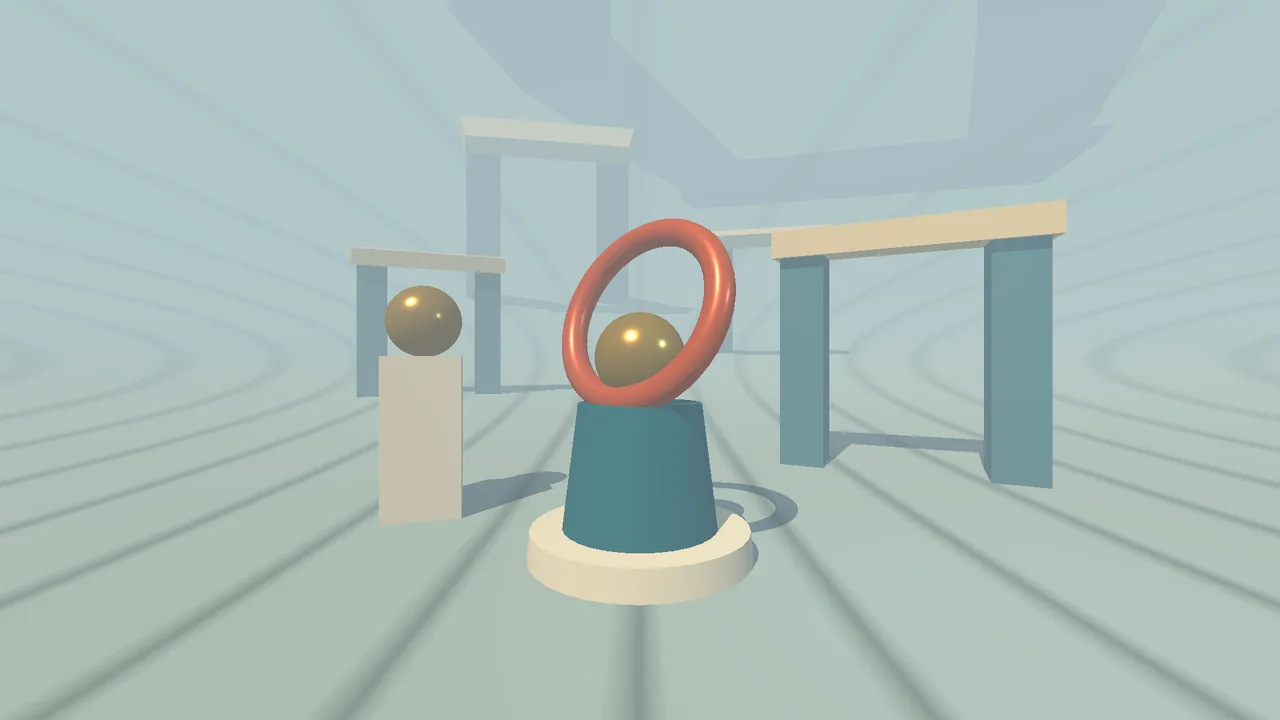
What is in the scene tree
Section titled “What is in the scene tree”| Node | Role |
|---|---|
MeridianGallery |
S3Space3D root (Radius = 14.0) using the Daylight S3Environment (AmbientEnergy = 0.44, FogDensity = 0.047) and textured Paving ground. |
Sun |
Root DirectionalLight3D with shadows enabled. |
Orrery |
S3Anchor3D at (0, 0, -4.4) holding the central plinth, ring, globe, cylinder collider, and local OmniLight3D. |
Satellite |
S3Anchor3D at (-2.35, 0, -5.6) holding the left pedestal, globe, and matching box collider. |
Meridian1–Meridian7 |
Seven instances of Meridian.tscn placed by spherical angles around the gallery. Each pier has a box collider. |
Walker/Eye |
S3CharacterController at the origin with its direct S3Camera3D child (Fov = 70°). |
Move one gate
Section titled “Move one gate”Each Meridian instance sets ChartPlacement = SphericalAngles: PolarDegrees controls how far it sits from the origin along the ground, and BearingDegrees picks its compass direction (0° toward +Z, 90° toward +X).
- Press F8 to stop the running scene, switch to the S³ editor tab, and select
Meridian1(PolarDegrees = 32°,BearingDegrees = 153°). - Keep
PolarDegreesat32°, changeBearingDegreesto175°, and click Rebake. - The gate moves horizontally across your view while keeping the same ground distance ().
The seven gates span PolarDegrees from 32° (Meridian1, 7.82 m) out to 170° (Meridian5, 41.54 m — only 10° short of the origin’s antipode). Why distant gates look large